Hik-Connect: Watch Your Cameras on Your Phone, Step by Step
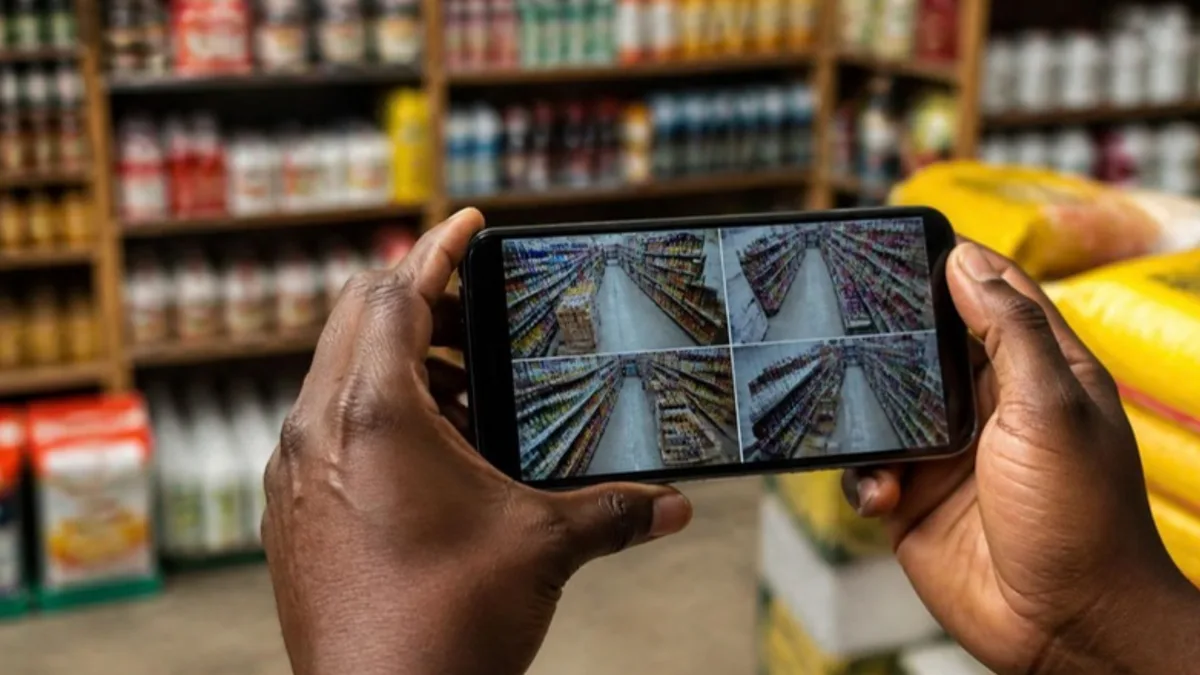
Hik-Connect is the free Hikvision app that shows your cameras live on your phone, plays back recordings and sends alerts. It needs no port forwarding on your router. We set it up at the end of every installation, but owners change phones, add managers and forget verification codes, so here is the whole process from the recorder menu to the first alert, written for someone who is not technical.
Before you start: what you need
- The recorder (DVR or NVR) or the camera connected to your router with working internet.
- The sticker with the QR code and serial number on the recorder, or the QR code shown in its menu.
- The verification code: six letters and digits, printed on the sticker on newer devices or set by us in the recorder menu.
- A phone with Hik-Connect installed from the App Store or Google Play.
- An email address or phone number for the account, and a password you will not share.
Step 1: enable Hik-Connect on the recorder
On the recorder screen go to Menu, then Configuration, then Network, then Advanced, then Platform Access (the names vary slightly between firmware versions). Tick Enable, accept the terms, and set the verification code if the field is empty. Write that code down. After a minute the status line should read Online. If it stays Offline, the recorder has no internet: check the cable to the router and the date and time on the recorder, which must be correct for the connection to work.
Step 2: create your account and add the device
- Open Hik-Connect and register with your email or phone number, choosing Mozambique as the country.
- Log in and tap the plus sign in the top corner.
- Scan the QR code on the recorder sticker or in the Platform Access menu.
- Type the verification code when asked.
- Give the device a name you recognise, such as Shop Matola or Home, and tap Finish.
The cameras appear as tiles. On the first open the app downloads the channel list, so give it a moment on a slow connection.
Step 3: live view, playback and saving a clip
Tap a tile for full screen, pinch to zoom, and swipe between cameras. For recordings tap Playback, pick the camera and the date on the calendar, and drag the timeline to the time you want. To keep a clip, tap the scissors or the record button while it plays; the clip saves to the phone gallery and can be sent on WhatsApp to the police or your insurer. Set the live view to the sub-stream, which is the default on mobile, so the picture loads fast and uses little data.
Step 4: alerts that mean something
In the device settings turn on Alarm Notification and allow the app in the phone's notification settings. Then decide what should alert you. Plain motion detection on every camera sends a notification each time a cloud passes, and after a week you will mute the app. On AcuSense cameras choose intrusion or line crossing on the cameras that matter, the back door and the perimeter, and use the schedule so alerts only arrive outside opening hours. Our post on analog and IP cameras explains which models have AcuSense.
Step 5: share with a manager or a guard
Never hand over your own password. Instead open the device, tap Share, and enter the Hik-Connect account of the manager or guard. You choose what they can do: live view only, playback, or alarms too, and you can remove the share at any time, for example when a staff member leaves. Each person uses their own phone and account, so you always know who looked at what.
Mobile data in Mozambique: how much does it use?
Live view on the sub-stream uses roughly 200 MB per hour per camera, so a quick check of two cameras for a minute costs a few megabytes, not a bundle. What eats data is leaving the live view open in your pocket. Use the shop Wi-Fi when you are on site, check for a minute rather than an hour, and remember the recorder needs upload speed at its end too: around 1 to 2 Mbps of upload on the shop connection keeps the picture smooth on Vodacom, Movitel or Tmcel on the other end.
When it does not connect
- Device Offline: no internet at the recorder. Check the router, the cable and whether the recorder gets an address automatically (DHCP on).
- Wrong date or time on the recorder: fix it in the menu; the cloud refuses devices with a clock years out.
- Verification code rejected: it is case sensitive. Look at the sticker again or reset it in Platform Access.
- Device already added to another account: this happens with second-hand recorders or when a previous manager added it. Call us; we unbind it and add it to your account.
- App shows black tiles: update the app, log out and in, and confirm the recorder firmware is current.
Frequently asked questions
Does Hik-Connect cost anything?
No. The app, live view, playback and alerts are free. Hikvision offers paid cloud storage inside the app, but you do not need it: your recorder stores the footage on its own hard drive.
Can several people watch at the same time?
Yes. Share the device with each person's account. The number of simultaneous streams depends on the recorder model and the upload speed at the site; for a shop, three or four viewers at once is normal.
Does it work on a tablet or on Wi-Fi only?
Yes. Hik-Connect runs on iPads and Android tablets and works on any internet connection, Wi-Fi or mobile data. On the shop Wi-Fi it can also connect directly to the recorder without going through the cloud.
Is it safe to view my cameras over the internet?
Yes, when the basics are in place: a strong recorder password, the verification code, two-step login in the app, and current firmware. Hik-Connect connects through Hikvision's cloud, so no port on your router is opened to the internet. We set all of this during installation and check it on the maintenance visit.
Need help setting it up?
If your recorder was installed by us, the setup is included; call us and we will walk you through it. For a new system, see our recorders or request a free quote. Call or WhatsApp 844888222, or email vendas@asslda.com.
Written by the A.S.S. LDA technical team, Maputo.